Notion vs Google Calendar for Students: Which to Build On?
Quick answer
They answer different questions: Google Calendar is the better home for time — classes, deadlines, reminders — while Notion is the better home for content — notes, projects, and trackers. Most students should treat Google Calendar as the source of truth for dates and use Notion (if at all) for everything that is not a date.
Try it with your own syllabus
Every assignment, exam, and reading on your calendar in about 30 seconds. Free, no account.
PDF, Word, or a photo of a paper one. No syllabus handy? See a sample
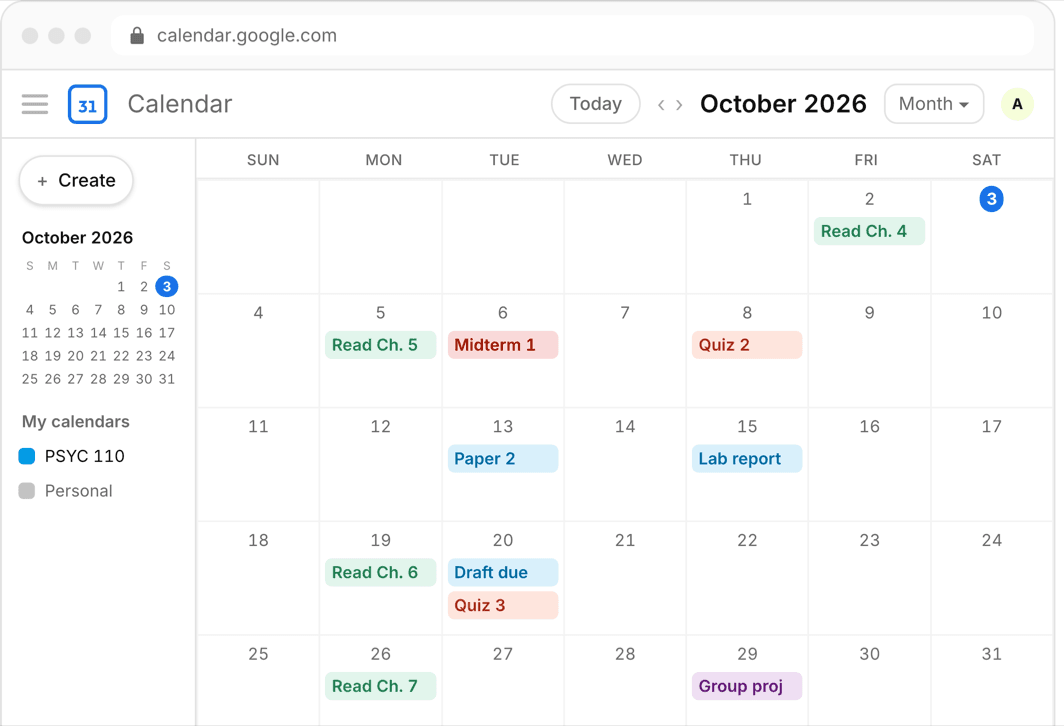
Notion versus Google Calendar looks like a matchup but is really a division of labor question. One is a flexible workspace that can represent anything; the other is a purpose-built time grid that represents exactly one thing extremely well. Students get into trouble mainly by asking either tool to do the other’s job.
This comparison is deliberately vendor-neutral: both tools are free for typical student use, both are excellent at what they are for, and the right answer for most people involves drawing the boundary well rather than picking a winner.
Or skip all of it
Upload the syllabus. Get the calendar.
Every assignment and exam on Google, Apple, or Outlook in about 30 seconds. One syllabus free, no account, no card.
What Google Calendar is for
Time. Classes, work shifts, deadlines, study blocks, and appointments, laid out in a grid your eye can scan in seconds. Its reminders are reliable and reach every device; its sharing handles group-project scheduling; per-course color-coded calendars make a heavy week legible. It subscribes to external feeds — including LMS calendar feeds from Canvas, Blackboard, or Moodle — so parts of your schedule can maintain themselves.
Its limits are equally clear: events are shallow. A calendar entry cannot hold your lecture notes, an essay outline, or a reading tracker, and it has no concept of task status. Google Calendar tells you when; it has nothing to say about what or how.
What Notion is for
Content and structure. Lecture notes that link to the courses they belong to, assignment databases with status and priority fields, reading lists, project docs, and semester dashboards that tie it together — Notion represents the substance of your academic life in ways a calendar cannot, and free student templates lower the barrier considerably.
Its limits: everything is manual, and time is not native. Database date properties and calendar views exist, but Notion’s reminders and scheduling are far weaker than a real calendar’s, and an unmaintained Notion dashboard rots silently. Notion also rewards — and requires — a personality that enjoys building and maintaining systems.
Head-to-head on what students actually need
- Never missing a deadline: Google Calendar, decisively — reliable notifications on every device is the whole game.
- Lecture notes and study material: Notion, decisively — the calendar has no answer here.
- Assignment tracking with statuses: Notion’s databases are richer; a disciplined calendar-plus-tasks setup is simpler and harder to break. Tie, by temperament.
- Group projects: Notion for shared docs and plans; Google Calendar for finding meeting times. Genuinely both.
- Maintenance burden: Google Calendar is nearly zero-maintenance once populated; Notion requires ongoing gardening. Advantage Google Calendar for the organizationally fragile.
- Cost: both free at student scale. No factor.
The clean division of labor
The setup that avoids both tools’ failure modes: Google Calendar is the single source of truth for anything with a date — if it has a deadline or a time, it lives there, with a reminder. Notion holds everything without a date: notes, outlines, trackers, project docs. When Notion needs to reference a due date, it points to the calendar rather than duplicating it.
The rule matters because duplication is where hybrid systems die: two homes for the same deadline means one is eventually stale, and you will not know which. One home per type of information, and each tool does what it is built for.
Feeding the calendar side (where a third tool fits)
Whichever way you lean, the calendar layer shares one weakness with Notion: nothing gets in by itself. LMS feeds cover whatever professors enter; everything else lives in syllabus PDFs. If the start-of-semester data entry is the step that breaks your system, a syllabus extraction tool like Classmaite closes it — upload each syllabus and it extracts every assignment, exam, and reading with its grading weight in about 30 seconds, then syncs reviewed events to Google Calendar (or Apple or Outlook) with reminders scaled to grade impact. The first syllabus is free without an account; unlimited is $9/month. It feeds either side of this comparison: your calendar directly, or the dates you reference from Notion.
Frequently asked questions
Can Notion replace Google Calendar for a student?
Technically it has calendar views and date reminders, but practically its notifications and scheduling are much weaker than a dedicated calendar’s. Students who rely on Notion alone for deadlines tend to miss things a real calendar would have caught. Use Notion for content and a real calendar for time.
Does Notion sync with Google Calendar?
Notion Calendar (a companion app) connects Google Calendar accounts and can show them alongside Notion data, which is the cleanest bridge between the two. Direct two-way sync between Notion databases and Google Calendar events is not a core built-in and typically involves third-party tools — another reason to keep one home per deadline.
Which should a disorganized student start with?
Google Calendar, without hesitation. It requires no building, and reminders provide a safety net on day one. Add Notion later only if you find yourself wanting a home for notes and trackers — starting with Notion means building the system before you have the habit.
How do syllabus deadlines get into either tool?
Manually, by default — neither Notion nor Google Calendar can read a syllabus file. Your options are typing them in, subscribing to an LMS calendar feed for whatever professors entered, or using an extraction tool like Classmaite, which pulls deadlines from syllabus PDFs and syncs them to your calendar with a review step (first syllabus free).