The Best Calendar Apps for College Students in 2026
Quick answer
Google Calendar is the best calendar app for most college students — free, universal, and compatible with everything, including LMS feeds. Apple Calendar is the right pick if you are all-in on Apple devices. But the app choice matters less than the harder problem: none of them can read a syllabus, so how you populate the calendar is the real decision.
Try it with your own syllabus
Every assignment, exam, and reading on your calendar in about 30 seconds. Free, no account.
PDF, Word, or a photo of a paper one. No syllabus handy? See a sample
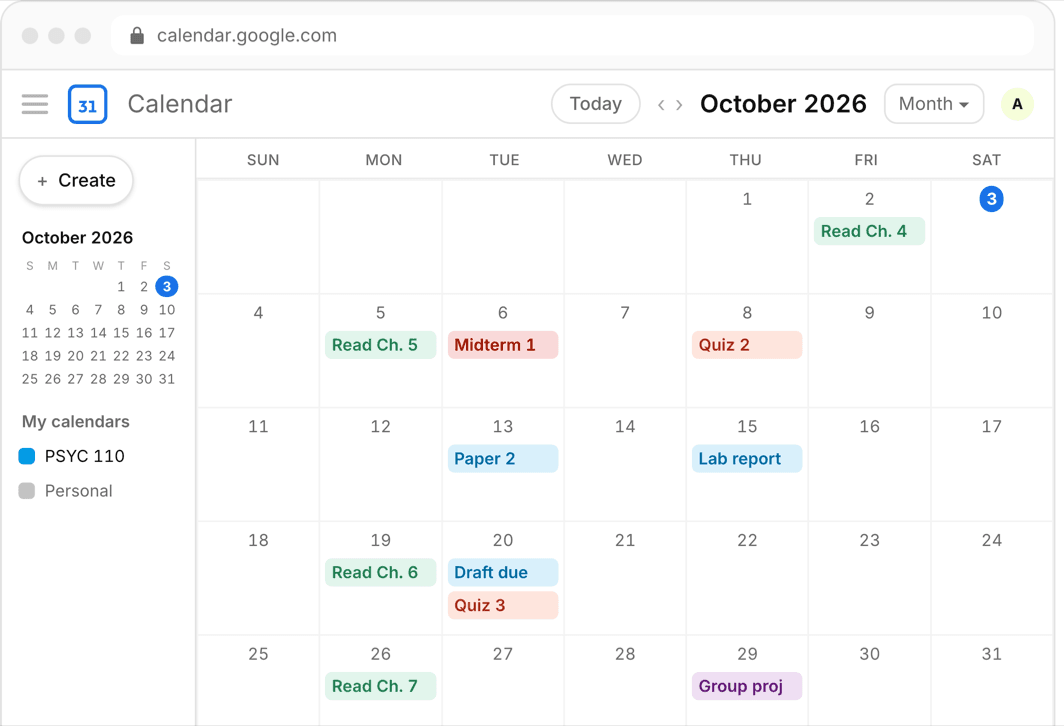
Choosing a calendar app is one of the lower-stakes decisions in student life, which is a relief, because the major options are all good. The real differences come down to your devices, your school’s email ecosystem, and how much polish you want to pay for.
This guide compares the five calendars students actually use, then spends real time on the question the app-comparison articles skip: a calendar is only as useful as what is on it, and every one of these apps starts the semester completely empty.
Or skip all of it
Upload the syllabus. Get the calendar.
Every assignment and exam on Google, Apple, or Outlook in about 30 seconds. One syllabus free, no account, no card.
Google Calendar — the default for a reason
Free, available on every platform, and integrated with nearly every other tool a student touches — including LMS calendar feed subscriptions, shared calendars for group projects, and Gmail event detection. Multiple calendars with per-course colors make a five-course semester readable at a glance.
Weaknesses are minor: the interface is utilitarian, and tasks/reminders are less capable than dedicated task apps. Best for: almost everyone, and especially students on Android, Windows, or mixed devices.
Apple Calendar — best inside the Apple ecosystem
If you carry an iPhone and a Mac, Apple Calendar is beautifully integrated: events surface on your lock screen and watch, Siri can add them, and it subscribes to the same .ics feeds and Google accounts as everything else. It is free and private by design.
Outside Apple hardware it is effectively unavailable, and its web version is not where you want to live. Best for: all-Apple students who want deadlines woven into the devices they already check constantly.
Outlook Calendar — best when your school runs on Microsoft
Many universities issue Microsoft 365 accounts, which makes Outlook the calendar where official university events, advisor meetings, and class Teams invites already land. Mail and calendar in one app is genuinely convenient, and the mobile apps are solid.
Standalone, it is less pleasant than Google or Apple for personal use, and mixing personal and school accounts takes some setup. Best for: students at Microsoft-based schools who want one place for university email and scheduling.
Notion Calendar and Fantastical — the power-user picks
Notion Calendar connects your Notion workspace to a real calendar interface, which is compelling if your assignments already live in Notion databases. Fantastical is a polished, subscription-based calendar for the Apple ecosystem known for natural-language event entry and a refined interface.
Both are excellent at presentation but sit on top of the same underlying calendars (usually Google or Apple accounts) — they change how you view events, not how events get created. Best for: students with an established Notion system, or Apple users who want a nicer front end and will pay for it.
The real problem: how does your calendar get populated?
Every app above starts the semester as an empty grid. The deadlines that matter are trapped in syllabus PDFs and, partially, in your LMS. Your options for filling the calendar are the same regardless of which app you choose: subscribe to an LMS feed (free, but only covers what professors enter), type everything in manually (free, but two to four hours for a full course load), or use an extraction tool.
This is Classmaite’s corner of the world: upload each syllabus and it extracts every assignment, exam, and reading deadline in about 30 seconds, lets you review and edit, then syncs to Google Calendar, Apple Calendar, or Outlook — or hands you an .ics file any calendar can import. Reminders are weighted by grading impact, so the calendar nudges you hardest about the work that moves your grade. The first syllabus is free without an account; unlimited syllabi run $9/month. Whichever calendar app you chose above, it works the same.
Bottom line
- Mixed or non-Apple devices, or no strong preference: Google Calendar.
- iPhone + Mac household: Apple Calendar (or Fantastical if you want polish and will pay).
- University runs on Microsoft 365: Outlook for school, optionally alongside a personal calendar.
- Deep Notion user: Notion Calendar as the viewing layer over your existing accounts.
- Whatever you pick, decide how it gets populated — LMS feed, manual entry, or syllabus extraction — because an empty calendar helps nobody.
Frequently asked questions
Can I use more than one calendar app at once?
Yes, and most students effectively do. Calendar accounts (Google, Microsoft, iCloud) sync across apps, so you can view your Google account in Apple Calendar or Outlook. Keep your events in one or two accounts and any app can display them.
How do I get my class schedule and due dates into a calendar automatically?
Two automatic routes exist: subscribe to your LMS calendar feed (Canvas, Blackboard, and Moodle all offer one) for whatever professors enter there, and use a syllabus extraction tool like Classmaite for everything that only exists in the syllabus. Manual entry is the fallback for anything else.
Is a paid calendar app worth it for students?
Usually not — Google, Apple, and Outlook calendars are free and cover everything essential. Paid apps like Fantastical buy interface polish and conveniences, not fundamentally new capability. If you have budget for one paid tool, most students get more value from something that saves real time than from a prettier grid.