How to Sync Brightspace (D2L) With Your Calendar
Quick answer
D2L Brightspace can generate a subscription URL from its Calendar tool — open the Calendar, find the subscribe option in its settings, and copy the iCal feed for all courses or a single course. Paste that URL into Google Calendar under Other calendars, From URL, or into Apple Calendar as a new calendar subscription.
Drop your syllabus here
Every assignment, exam, and reading on your calendar in about 30 seconds. Free, no account.
PDF, Word, or a photo of a paper one. No syllabus handy? See a sample
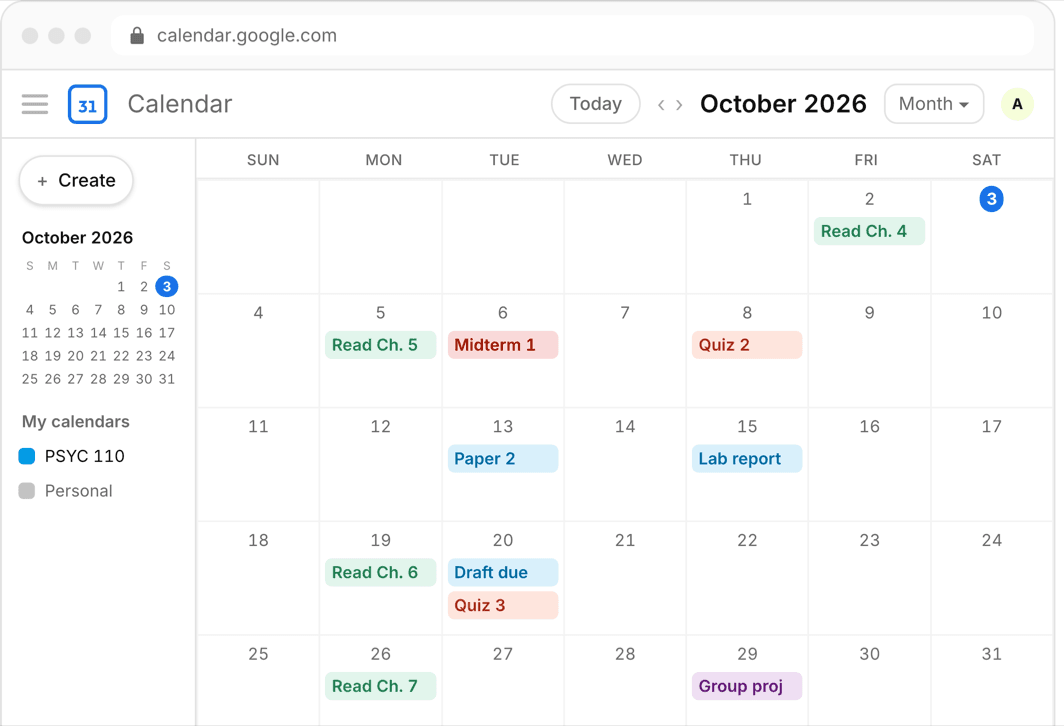
Brightspace — the LMS most schools just call D2L — keeps course due dates in its Calendar tool, and that tool can feed an external calendar. If your professors actually enter dates, a two-minute setup puts them in Google or Apple Calendar automatically.
That last clause is the catch. Like every LMS, Brightspace only knows the dates professors typed in, so this guide covers the subscription setup and the syllabus-based route that covers everything else.
Or skip all of it
Upload the syllabus. Get the calendar.
Every assignment and exam on Google, Apple, or Outlook in about 30 seconds. One syllabus free, no account, no card.
Step 1: Find the subscription option in Brightspace
Open the Calendar tool in Brightspace. In the calendar settings or menu, look for a subscribe option — Brightspace can generate an iCal feed URL for your calendar, and depending on the version you can scope it to all courses or one course.
Copy the URL it produces. Some schools disable external feeds, so if no subscribe option exists anywhere in the calendar settings, that is an admin decision — fall back to the syllabus route below.
Step 2: Subscribe from Google or Apple Calendar
- Google Calendar: sidebar plus sign next to Other calendars, then From URL, paste, Add calendar
- Apple Calendar on Mac: File menu, New Calendar Subscription, paste the URL, set auto-refresh to the shortest interval offered
- iPhone: Settings app, Calendar, Accounts, Add Account, Other, Add Subscribed Calendar, paste the URL
- Give the D2L calendar its own color so LMS events are visually distinct
What the Brightspace feed will not show you
The feed carries dated items professors entered: assignment due dates, quiz windows, and calendar events. It skips everything that lives only in the syllabus — weekly readings, paper deadlines the professor never entered, participation checkpoints.
Subscribed feeds are also read-only and refresh on the calendar app schedule, not instantly. A change a professor makes in D2L today may not reach your phone until tomorrow.
Manual entry: the fallback that always works
If feeds are disabled at your school or your professors barely use D2L, the manual route is to enter each deadline from the syllabus into your calendar by hand. Budget 15–30 minutes per course, do it during syllabus week, and verify every exam date twice — a transposed date is the most expensive typo in college.
The syllabus route: complete coverage in one pass
However good your D2L sync is, the syllabus remains the only complete record of the course — every graded item, its weight, and its date, published on day one. Build your calendar from that, and the LMS feed becomes a bonus layer instead of a single point of failure.
This is exactly what Classmaite automates: you drop in the syllabus PDF and it extracts the assignments, exam dates, grading breakdown, and reading schedule, then pushes them to Google Calendar, Apple Calendar, or an .ics file in about thirty seconds.
Frequently asked questions
Can Brightspace sync with Google Calendar?
Yes, if your school has calendar feeds enabled. The Brightspace Calendar tool can generate an iCal subscription URL that Google Calendar accepts under Other calendars, From URL. The sync is one-way and read-only.
Why is there no subscribe option in my D2L calendar?
Some institutions disable external calendar feeds in Brightspace. If the option is missing from your calendar settings entirely, you will need to enter deadlines manually or generate them from the syllabus instead.
Does the D2L calendar show readings and papers?
Only if a professor entered them as dated items, which is rare for readings. The syllabus is the complete list; the D2L calendar is a partial view of it.