How to Import an .ics File Into Google Calendar
Quick answer
To import an .ics file into Google Calendar, open Google Calendar on desktop, click the gear icon, choose Settings, then Import & export. Select the .ics file, pick which calendar the events should go into, and click Import. To subscribe to a live .ics URL instead, click the plus next to Other calendars and choose From URL.
Drop your syllabus here
Every assignment, exam, and reading on your calendar in about 30 seconds. Free, no account.
PDF, Word, or a photo of a paper one. No syllabus handy? See a sample
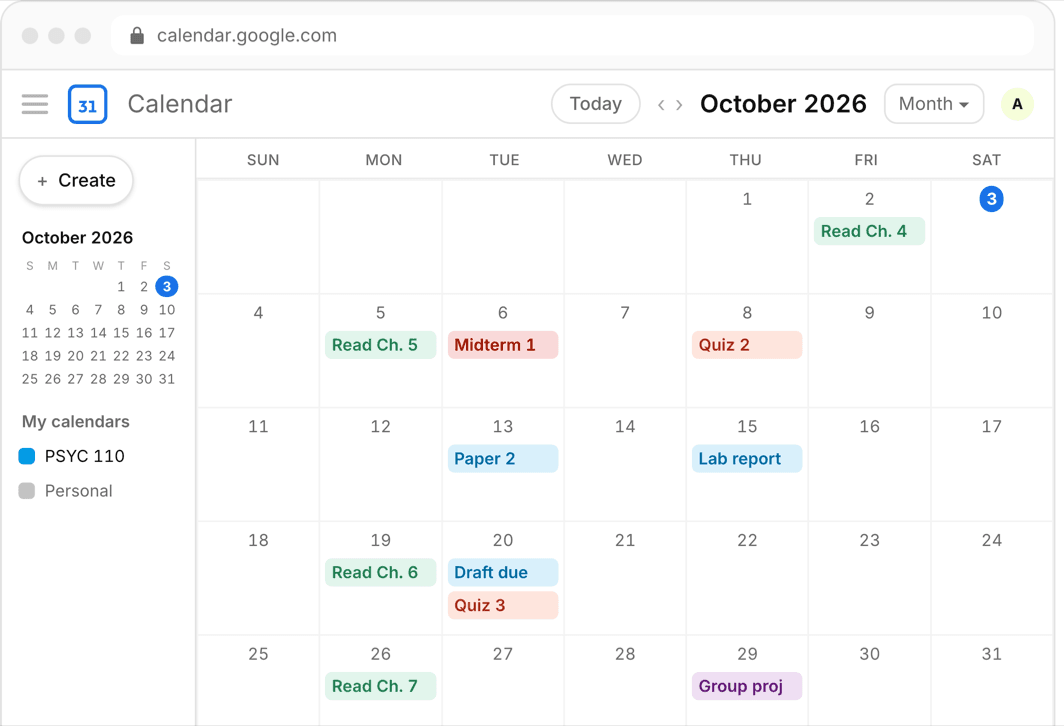
You have an .ics file — from a syllabus tool, a registrar, a club, or an export from another app — and you want its events in Google Calendar. The import takes under a minute, but it is buried in settings where nobody looks, and Google offers a second, different mechanism (URL subscription) that is easy to confuse with it.
Here is the exact process for both, how to pick between them, and what to do when the import fails.
Or skip all of it
Upload the syllabus. Get the calendar.
Every assignment and exam on Google, Apple, or Outlook in about 30 seconds. One syllabus free, no account, no card.
One-time import: the steps
- Open Google Calendar in a desktop browser — import is not available in the mobile app
- Click the gear icon in the top right and choose Settings
- In the left menu, click Import & export
- Click Select file from your computer and choose the .ics file
- Use the dropdown to pick which calendar receives the events — do not skip this
- Click Import; Google reports how many events were added
Pick the destination calendar deliberately
The dropdown in the import screen defaults to your main calendar. For school, create a dedicated calendar first — Classes or one per course — and import into that. It keeps academics toggleable and color-coded, and it makes mistakes reversible.
That reversibility matters because Google has no undo import button. If events land in the wrong place, you delete them one by one — but if they went into a dedicated calendar, you can delete that entire calendar and reimport cleanly.
Subscribe to a URL instead
If what you have is a link to an .ics feed rather than a downloaded file — a Canvas or Moodle calendar feed, for example — do not import it. In the left sidebar, click the plus sign next to Other calendars, choose From URL, paste the link, and click Add calendar.
The subscription stays synced with the source but is read-only, and Google refreshes it on its own schedule — typically every several hours, up to about a day, with no manual refresh.
Import or subscribe: how to choose
- You have a downloaded .ics file — import it
- You have a URL to a feed that changes over time (LMS calendars) — subscribe
- You want to edit events or add your own reminders to them — import; subscriptions are read-only
- You want automatic updates when the source changes — subscribe; imports never update
- Importing the same file twice creates duplicates, so reimport only after deleting the first batch
Troubleshooting, and where semester .ics files come from
If Google says it could not process the file, check that it actually ends in .ics and opens as plain text starting with BEGIN:VCALENDAR — a renamed or corrupted file is the usual culprit. If events import at odd hours, the file lacked timezone information; if nothing seems to appear, check that the destination calendar is toggled visible.
As for getting a semester of deadlines into .ics form in the first place: this is exactly what Classmaite automates. You drop in the syllabus PDF and it extracts the assignments, exam dates, grading breakdown, and reading schedule, then pushes them straight to Google Calendar or hands you the .ics file — about thirty seconds per course, then the one-minute import above.
Frequently asked questions
Can I import an .ics file in the Google Calendar mobile app?
No. Import lives in Settings, Import & export, which only exists in the desktop browser version. Import there once and the events sync to your phone automatically.
Can I undo an import in Google Calendar?
There is no undo button. You have to delete imported events individually — unless you imported into a dedicated calendar, in which case you can delete that whole calendar in one step. Always import into a dedicated calendar.
Why did my imported events show at the wrong time?
The .ics file likely lacked timezone data, so Google applied its own assumption. Check that your Google Calendar timezone matches your campus timezone, then delete and reimport.