What Is an .ics File? The Calendar Format, Explained
Quick answer
An .ics file is a plain-text file in the iCalendar format, the universal standard for exchanging calendar events. It can hold one event or an entire semester of them, and Google Calendar, Apple Calendar, and Outlook can all import it or subscribe to a live .ics URL.
Drop your syllabus here
Every assignment, exam, and reading on your calendar in about 30 seconds. Free, no account.
PDF, Word, or a photo of a paper one. No syllabus handy? See a sample
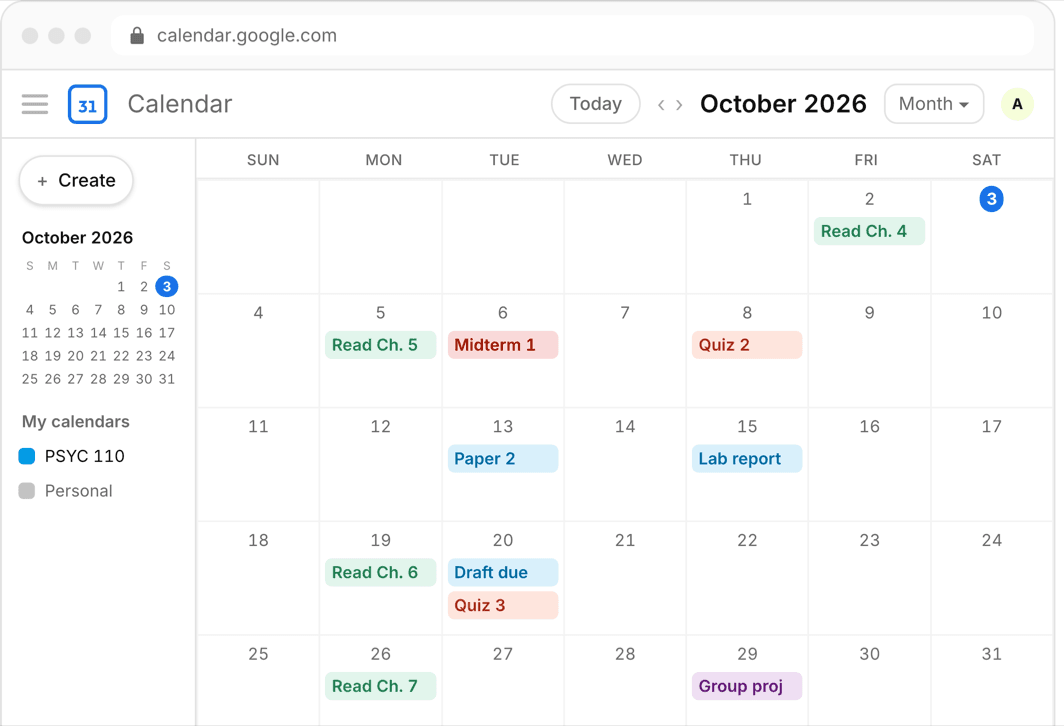
Every time a calendar invite lands in your email, an LMS offers a calendar feed, or an app says export to calendar, the thing moving under the hood is an .ics file. It is the one format every calendar app on earth agrees on.
For students it is quietly one of the most useful file types there is: a whole semester of deadlines can travel in a single file. Here is what it actually is and the two very different ways to use one.
Or skip all of it
Upload the syllabus. Get the calendar.
Every assignment and exam on Google, Apple, or Outlook in about 30 seconds. One syllabus free, no account, no card.
The format, in plain terms
An .ics file is plain text in the iCalendar standard (RFC 5545). Open one in a text editor and you can read it: each event sits between BEGIN:VEVENT and END:VEVENT lines, with fields for the title, start and end times, description, location, and optional alarms.
Because it is a standard, it is the lingua franca between systems that otherwise do not talk: Canvas can hand events to Google Calendar, and a tool that outputs .ics works with every calendar app at once. One file can contain a single event or hundreds.
Import vs subscribe: the distinction that matters
There are two ways to consume .ics, and mixing them up causes most calendar confusion. A one-time import reads a downloaded .ics file and copies its events into your calendar — they become yours to edit, and the file is never consulted again.
A subscription points your calendar app at a live .ics URL. Events appear automatically and update when the source changes, but they are read-only and refresh on the app schedule — often hours, up to about a day. LMS calendar feeds are subscriptions; a downloaded semester file is an import.
How to open an .ics file on each platform
- Google Calendar: gear icon, Settings, Import & export, select the file, choose a destination calendar, Import
- Apple Calendar on Mac: double-click the file, or File then Import from inside Calendar
- iPhone: open the file from Mail or Files and add the events when prompted
- Outlook on the web: Add calendar, then Upload from file
- Subscribing to an .ics URL: in Google, Other calendars then From URL; on Mac, File then New Calendar Subscription
How students actually use .ics files
The .ics ecosystem shows up all over a semester: subscribing to a Canvas, Blackboard, or Moodle feed, importing a club or intramural schedule, moving your calendar between Google and Apple, or receiving exam schedules from a registrar.
The highest-leverage use is the semester-in-one-file move: turn each syllabus into an .ics file and import it, and every assignment, exam, and reading lands in your calendar in one pass. This is exactly what Classmaite produces: you drop in the syllabus PDF and it extracts the assignments, exam dates, grading breakdown, and reading schedule, then pushes them to Google Calendar, Apple Calendar, or an .ics file in about thirty seconds.
Frequently asked questions
Is an .ics file the same as an iCal file?
Yes. iCal, iCalendar, and .ics all refer to the same standard format. The name comes from Apple old iCal app, but the format is universal — Google Calendar and Outlook use it too.
Can an .ics file contain multiple events?
Yes. A single .ics file can hold any number of events — one calendar invite or an entire semester of deadlines. Importing it adds all of them at once.
What is the difference between importing an .ics file and subscribing to one?
Importing copies events from a downloaded file into your calendar once — they become editable and never update. Subscribing to an .ics URL keeps events synced with the source automatically, but they stay read-only.