How to Get Canvas Assignments Into Google Calendar
Quick answer
To sync Canvas with Google Calendar, open the Canvas Calendar, click Calendar Feed, copy the .ics URL, then in Google Calendar go to Other calendars, choose From URL, and paste it. The feed only includes items your professors entered with due dates, so anything that lives only in the syllabus will be missing.
Drop your syllabus here
Every assignment, exam, and reading on your calendar in about 30 seconds. Free, no account.
PDF, Word, or a photo of a paper one. No syllabus handy? See a sample
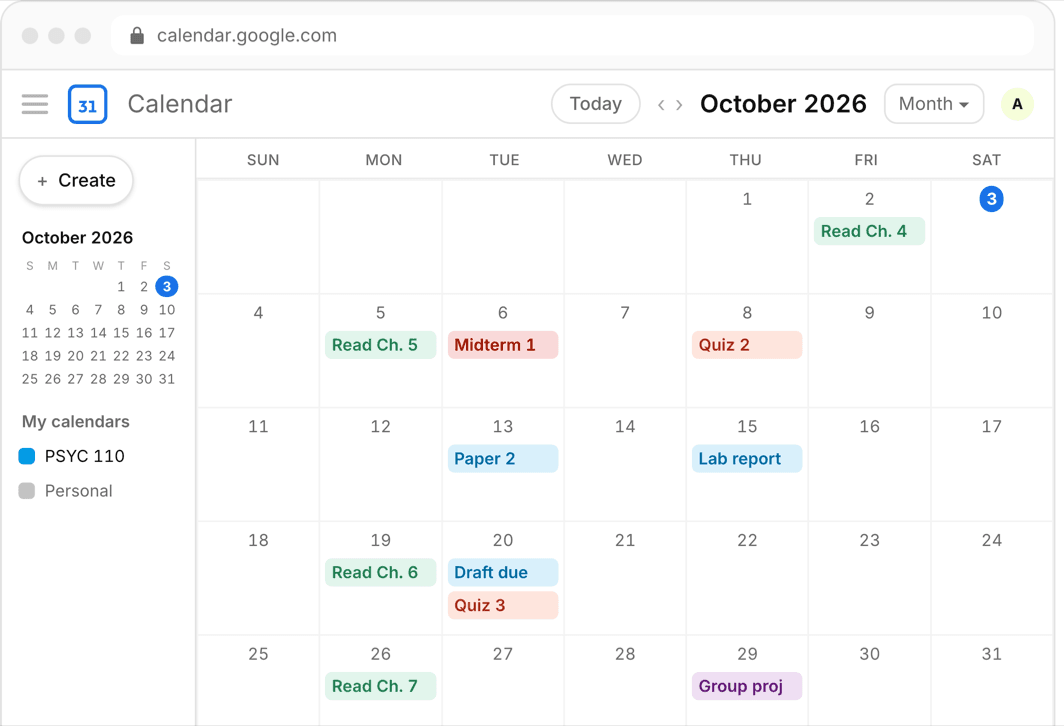
Canvas knows some of your deadlines. Google Calendar is where you actually plan your life. Connecting the two takes about two minutes — but the connection is only as good as the data your professors put into Canvas, and that is where most students get burned.
This guide covers all three routes: subscribing to the Canvas calendar feed, entering events by hand, and going straight to the source — the syllabus itself. Each has a real tradeoff, so it is worth knowing which one you are choosing.
Or skip all of it
Upload the syllabus. Get the calendar.
Every assignment and exam on Google, Apple, or Outlook in about 30 seconds. One syllabus free, no account, no card.
Route 1: Subscribe to the Canvas calendar feed
Canvas generates a personal .ics feed URL that covers every course you are enrolled in. Subscribing to it in Google Calendar means Canvas events show up automatically and update on their own.
- In Canvas, click Calendar in the left navigation
- Look for the Calendar Feed link (bottom right on desktop) and copy the URL it gives you
- In Google Calendar, find Other calendars in the left sidebar and click the plus sign
- Choose From URL, paste the feed link, and click Add calendar
- Canvas events now appear as their own calendar you can toggle and color
The catch: the feed only shows what professors entered
The Canvas feed is not a picture of your semester — it is a picture of what each professor typed into Canvas. If a professor posts the syllabus as a PDF and never creates Canvas assignments with due dates, those deadlines simply do not exist in the feed. Reading schedules almost never make it in.
The feed is also read-only and slow to refresh: Google refreshes subscribed calendars on its own schedule, which can take up to roughly a day. You cannot edit a Canvas event from Google, add your own reminders to it individually, or move it. Treat the feed as a helpful overlay, not your actual planning system.
Route 2: Enter deadlines by hand
The manual route is to open each syllabus next to Google Calendar and create an event for every assignment, exam, and reading deadline. It gives you full control — real events you can edit, color, and attach custom reminders to.
The cost is time and accuracy. Expect 15–30 minutes per course, and one typo on an exam date can be genuinely expensive. If you go this route, do it once during syllabus week and double-check every exam date against the PDF.
Route 3: Go to the source — the syllabus
The syllabus is the contract for the course. It has every graded item, its weight, and its date — including the readings and papers that never make it into Canvas. If Canvas and the syllabus disagree, professors almost always defer to the syllabus.
That makes the highest-accuracy workflow: extract everything from the syllabus into your calendar, then keep the Canvas feed as a backup layer that catches mid-semester changes professors post online.
The fast version of route 3
Doing the syllabus extraction by hand is the 15–30 minutes per course described above. This is exactly what Classmaite automates: you drop in the PDF and it extracts the assignments, exam dates, grading breakdown, and reading schedule, then pushes them to Google Calendar, Apple Calendar, or an .ics file in about thirty seconds.
Either way, the goal is the same — one calendar that contains the whole semester, not just the slice of it your professors happened to enter into Canvas.
Frequently asked questions
Does Canvas sync with Google Calendar automatically?
Yes, via the Calendar Feed link in the Canvas Calendar. Once you subscribe in Google Calendar with From URL, new Canvas events appear automatically — but only items professors entered with due dates, and refreshes can take up to about a day.
Why are some assignments missing from my Canvas calendar feed?
Because the professor never entered them as Canvas assignments with due dates. Deadlines that only exist in the syllabus PDF — readings, papers, some exams — will not appear in the feed. The syllabus is the complete source.
Can I edit Canvas events inside Google Calendar?
No. A subscribed calendar feed is read-only. You can toggle it on and off and change its color, but you cannot move events, rename them, or add per-event reminders. For events you control, create them yourself or import an .ics file.