How to Use Canvas: A Student Guide to the Basics
Quick answer
Canvas organizes each course into a dashboard card with Modules for content, Assignments for submissions, Grades for scores, and a Calendar plus To Do list for dated work. Start by checking the dashboard daily, turning on notifications for announcements and grades, and remembering that Canvas only shows deadlines professors entered — the syllabus has the rest.
Drop your syllabus here
Every assignment, exam, and reading on your calendar in about 30 seconds. Free, no account.
PDF, Word, or a photo of a paper one. No syllabus handy? See a sample
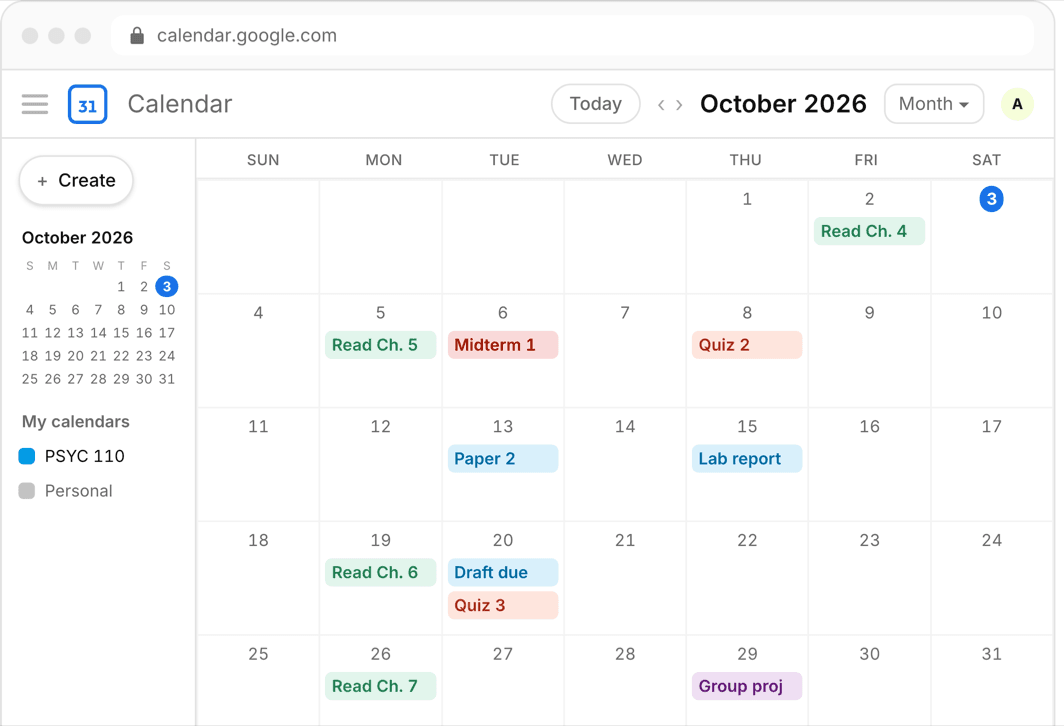
Canvas is the LMS at a huge share of US colleges, and nobody formally teaches it — you get a login during orientation and figure out the rest mid-semester, usually the hard way. The good news is that students only need about six parts of it.
This is the tour that orientation skips: what each area does, the two settings worth changing on day one, and the structural blind spot that catches almost every freshman.
Or skip all of it
Upload the syllabus. Get the calendar.
Every assignment and exam on Google, Apple, or Outlook in about 30 seconds. One syllabus free, no account, no card.
The dashboard and course cards
After login you land on the dashboard: one card per course. Click a card to enter the course; inside, the left navigation is where everything lives — but professors customize which links appear, so two courses can look completely different. When you cannot find something, try Modules first; most professors organize all content there by week or topic.
If a course you registered for is missing from the dashboard, it is usually unpublished — professors publish on their own schedule, often not until the first day of class.
The To Do list and what it actually knows
The sidebar To Do list shows upcoming items with due dates — it is the closest thing Canvas has to telling you what to do next, and it is worth a daily glance. But it is fed entirely by due dates professors entered. No entered date, no to-do item, no matter how real the deadline is.
Treat it as a reminder surface, not a plan. Its horizon is short and its coverage is only as good as each professor data entry.
The calendar, and the feed for your own apps
The Calendar link in global navigation merges every course into one view, color-coded, with a sidebar toggle per course. The Calendar Feed link (bottom right on desktop) gives you a personal .ics URL that Google or Apple Calendar can subscribe to, so Canvas dates flow into the calendar you actually check.
Same caveat as the To Do list: the calendar shows entered due dates only. Reading schedules and syllabus-only deadlines are invisible here.
Fix your notification settings on day one
Canvas notification defaults are wrong in both directions — you can miss critical announcements while drowning in discussion-post emails. Open Account, then Notifications, and set them deliberately. These are account-wide, ten minutes, once.
- Announcements: immediately — professors post schedule changes and exam details here
- Grading: immediately or daily summary, your call on how much you want to know
- Due date changes: immediately — this is how you catch moved deadlines
- Discussion replies: daily or weekly summary unless a course is participation-graded
- Install the Canvas Student mobile app and allow push for the same categories
Grades and what-if scores
The Grades page shows scored work per course, and it has a feature most students never find: click a score and type a hypothetical to see what-if math — enter an imagined final exam score and watch your course grade recalculate. Useful for deciding where finals effort actually matters.
Trust it only as far as the professor set up the gradebook. If weights or categories look off compared to the syllabus grading breakdown, the syllabus is the authority.
The blind spot: Canvas is not the syllabus
Everything above shares one limitation: Canvas displays what professors typed in, and professors range from meticulous to using Canvas as a place to park a PDF. The syllabus is the complete contract — every graded item, weight, and date — and when Canvas and the syllabus disagree, the syllabus usually wins.
So build your real calendar from the syllabus and let Canvas be the change-detection layer. This is exactly what Classmaite automates: you drop in the syllabus PDF and it extracts the assignments, exam dates, grading breakdown, and reading schedule, then pushes them to Google Calendar, Apple Calendar, or an .ics file in about thirty seconds.
Frequently asked questions
Why is a course not showing up in my Canvas dashboard?
The professor has not published it yet. Courses are invisible to students until published, which often happens the first day of class. If it is still missing after classes start, contact the professor or registrar.
Does the Canvas To Do list show everything that is due?
No. It only shows items professors entered with due dates in Canvas. Deadlines that exist only in the syllabus — readings, some papers and exams — never appear there.
Can I sync Canvas with Google Calendar or Apple Calendar?
Yes. The Calendar Feed link in the Canvas Calendar gives you a personal .ics URL to subscribe to from Google Calendar (From URL) or Apple Calendar (New Calendar Subscription). It syncs entered due dates only, one-way.