How to Get Blackboard Deadlines Into Google Calendar
Quick answer
Blackboard can generate an external calendar link (an .ics URL) from its Calendar tool. Copy that link, then in Google Calendar choose Other calendars, From URL, and paste it to subscribe. Only items your professors entered with due dates will sync — syllabus-only deadlines will not appear.
Drop your syllabus here
Every assignment, exam, and reading on your calendar in about 30 seconds. Free, no account.
PDF, Word, or a photo of a paper one. No syllabus handy? See a sample
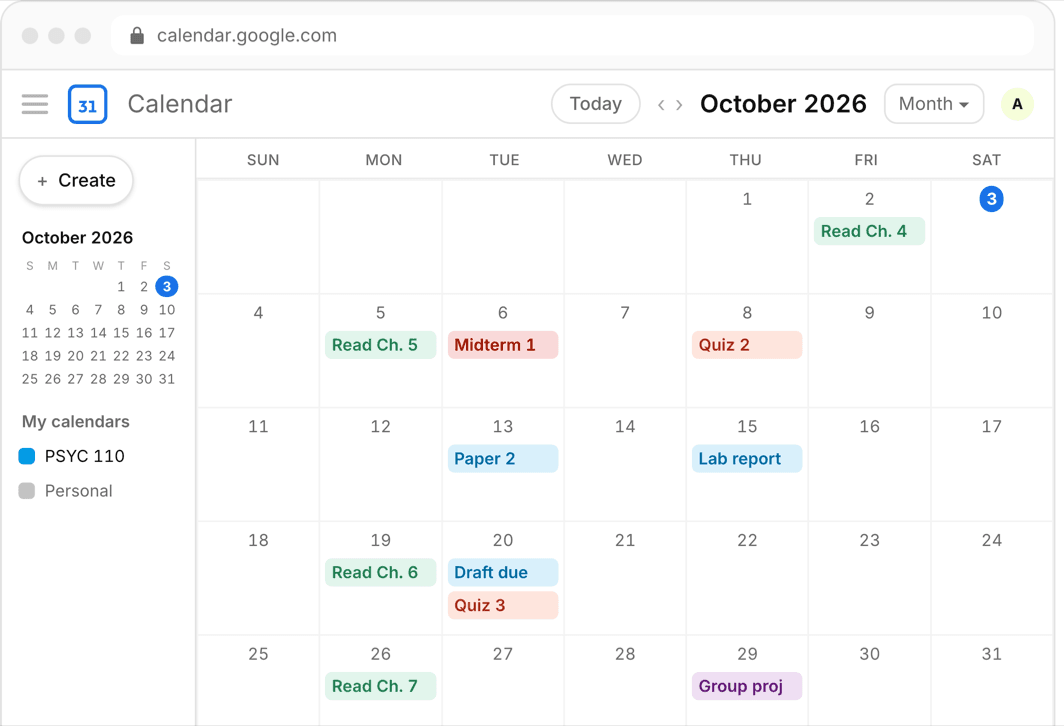
Blackboard has a calendar, and it can talk to Google Calendar — most students just never find the link that connects them. Once you do, due dates professors entered into Blackboard flow into the calendar you actually check.
The setup takes two minutes. The more important part is understanding what the sync will and will not carry, because Blackboard courses are notorious for living half in the LMS and half in a syllabus PDF.
Or skip all of it
Upload the syllabus. Get the calendar.
Every assignment and exam on Google, Apple, or Outlook in about 30 seconds. One syllabus free, no account, no card.
Step 1: Get your Blackboard calendar link
Open the Calendar tool in Blackboard — in the base navigation on newer versions, or from the tools area of your institution page on older ones. Look for the option to share or export the calendar; Blackboard calls it an external calendar link on most versions. It produces a long .ics URL unique to you.
Copy that URL. Do not share it — anyone with the link can see your course calendar. If the label differs at your school, look for anything mentioning iCal, ICS, or external calendar in the calendar settings.
Step 2: Subscribe in Google Calendar
- Open Google Calendar on desktop
- In the left sidebar, click the plus sign next to Other calendars
- Choose From URL and paste the Blackboard link
- Click Add calendar — Blackboard items appear as their own toggleable calendar
- Give it a distinct color so LMS items are visually separate from your own events
What the sync misses
The feed carries items with due dates that professors entered into Blackboard: assignments, tests, and course calendar events. It does not carry anything that exists only in the syllabus — reading schedules, paper deadlines a professor never created as Blackboard items, or exams announced only in the PDF.
It is also read-only and refreshes on Google schedule, which can take several hours to a day. And if a professor updates a date only in the syllabus without touching Blackboard, your feed is now quietly wrong.
The manual alternative
You can skip the feed entirely and type every deadline from each syllabus into Google Calendar yourself. It costs 15–30 minutes per course during syllabus week, and it is only as accurate as your typing — but you end up with real, editable events with your own reminders instead of a read-only overlay.
The complete route: build from the syllabus
The reliable system is syllabus-first: extract every graded item, weight, and date from the syllabus into your calendar, then keep the Blackboard feed as a secondary layer that catches changes professors post online.
This is exactly what Classmaite automates: you drop in the syllabus PDF and it extracts the assignments, exam dates, grading breakdown, and reading schedule, then pushes them to Google Calendar, Apple Calendar, or an .ics file in about thirty seconds.
Frequently asked questions
Can Blackboard sync with Google Calendar?
Yes. The Blackboard Calendar tool can generate a personal .ics link, and Google Calendar can subscribe to it via Other calendars and From URL. The sync is one-way and read-only.
Why are my Blackboard due dates not showing in Google Calendar?
Either the item has no due date in Blackboard, the professor never created it as a Blackboard item, or the feed simply has not refreshed yet — Google can take up to about a day to refresh a subscribed URL.